To change between setups, highlight the desired setup and
press  to select.
Note: by pressing
 to discard. any changes will be lost.
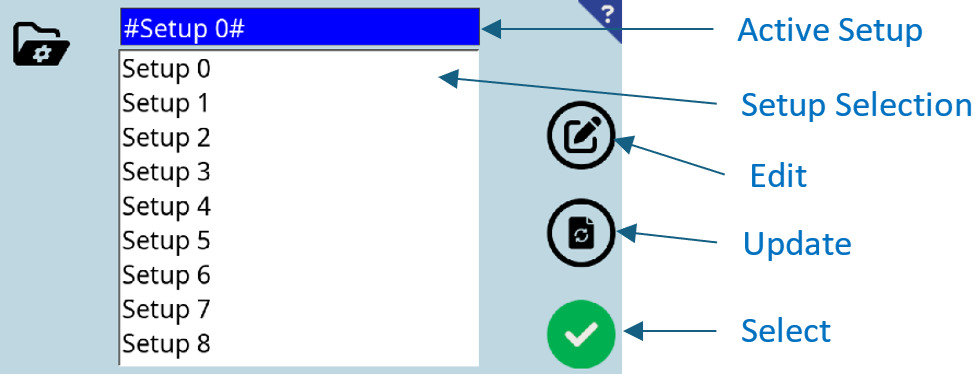 If any parameters have been updated during the current slice
session, the setup name will be bracketed by # symbols. The active setup can be
saved by pressing the
If any parameters have been updated during the current slice
session, the setup name will be bracketed by # symbols. The active setup can be
saved by pressing the  update
button. Another setup can be overwritten with the active setup by selecting from the list and pressing the
update
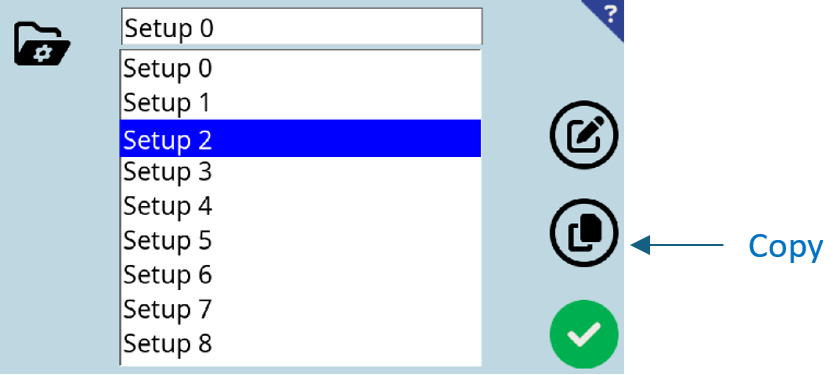
button. Another setup can be overwritten with the active setup by selecting from the list and pressing the  copy button.
The setup name will not be copied as it is not possible to duplicate a Setup
name. HOwever, it can be edited.
copy button.
The setup name will not be copied as it is not possible to duplicate a Setup
name. HOwever, it can be edited.
In the case below, the settings from Setup 0 (in the top box)
will be copied to Setup 2 by pressing the copy
button.
 To edit a setup, highlight
Setup 2 and press
To edit a setup, highlight
Setup 2 and press  edit. Select a field in the Custom Setup Details Screen
to edit. The screen will present either a keypad, the relevant entry screen or
toggle between options. Pressing the 'More' or 'Less' button will display more
Custom parameters.
edit. Select a field in the Custom Setup Details Screen
to edit. The screen will present either a keypad, the relevant entry screen or
toggle between options. Pressing the 'More' or 'Less' button will display more
Custom parameters.
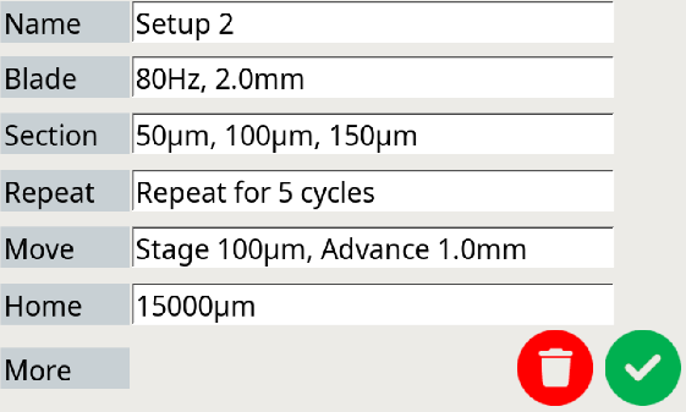
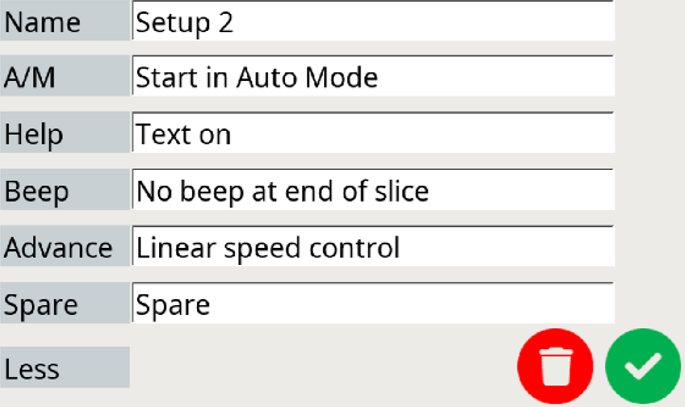 Custom Setup Details